
Mir Pay Payment via Redirect
The payment service Роутер supports Mir Pay payments from the payment page only on mobile Android devices.
The Mir Pay button is displayed only in a browser or Webview on Android mobile devices. It will not appear in a PC browser, even if the respective payment method was specified during order registration.
Payments using Mir Pay are always made to a specific (target) bank. The bank for Mir Pay is set in the partner's settings in the Payment Service and can be changed if necessary. To do so, you need to contact technical support. To find out the current settings, use the /settings/getRouterParams.do request.
Integration Scheme
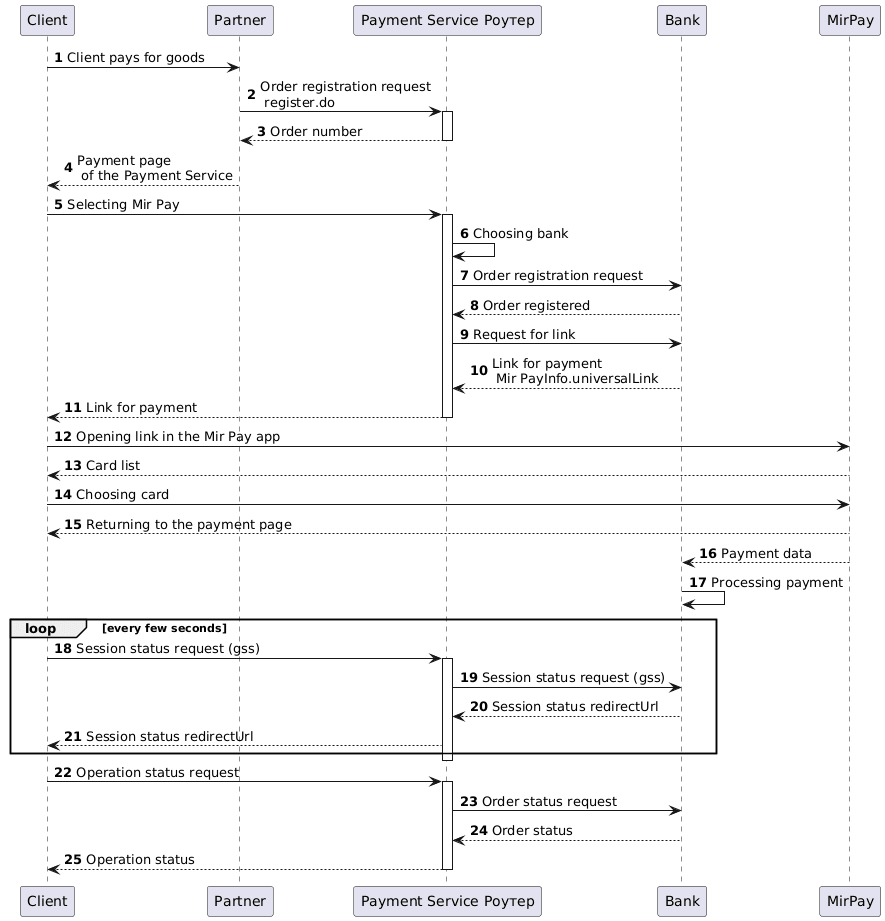
Enable Mir Pay on the Payment page
Specify "MIR_PAY" value in the "allowedPaymentWays" parameter of the registration request to make the Mir Pay payment method available on the Payment service's payment page. Below is an example of such a request.
1. The client initiates the purchase of goods or services on the partner's website.
2. The partner sends an order registration request to the Payment Service Роутер: register.do for single-stage payment or registerPreAuth.do for two-stage payment. For more about these payment types, see the section Two-Stage Payments.
To display the Mir Pay payment button on the payment page, the "MIR_PAY" payment method must be added among other methods in the allowedPaymentWays parameter during order registration.
Request example:
curl -X POST 'https://api.router.rbsuat.com/v2/register.do'
-H 'Content-Type: application/json' \
--data-raw '{
    "orderNumber": "order_123508",
    "amount": 10000,
    "currency": "643",
    "language": "en",
    "returnUrl": "https://mybestmerchantreturnurl.com/success",
    "failUrl": "https://mybestmerchantreturnurl.com/fail",
    "userName": "test_user",
    "password": "test_user_password",
    "allowedPaymentWays": [
        "MIR_PAY",
        "CARD_BINDING",
        "CARD"
    ]
}'
curl -X POST 'https://api.router.rbsuat.com/v1/register.do'
-H 'Content-Type: application/json' \
--data-raw '{
"orderNumber": "order_123508",
"amount": 10000,
"currency": "643",
"language": "en",
"returnUrl": "https://mybestmerchantreturnurl.com/success",
"failUrl": "https://mybestmerchantreturnurl.com/fail",
"userName": "test_user",
"password": "test_user_password",
"allowedPaymentWays": [
"MIR_PAY",
"CARD_BINDING",
"CARD"
]
}'3. The Payment Service Роутер verifies the partner's data and registers the order.
Redirect to the payment page
4. The Payment Service Роутер provides the partner with a link to the payment page.
Response example:
{
    "errorCode": "0",
    "formUrl": "https://router.rbsuat.com/wl/payment.html?mdOrder=f9584546-2613-4a0d-896f-0194d243865f&language=en",
    "orderId": "f9584546-2613-4a0d-896f-0194d243865f",
    "orderNumber": "order_123508"
}
Mir Pay payment
5. The client selects the Mir Pay payment method.

6. The Payment Service Роутер selects the appropriate bank based on routing rules.
7-10. The Payment Service Роутер exchanges data with the selected bank to get the Mir Pay link (universalLink, deepLink).
11. The Payment Service Роутер redirects the client to the Mir Pay link.
12. The client transitions to the Mir Pay app on their device (smartphone).
13. The Mir Pay app prompts the client to select a card for deduction from the linked cards.
14. The client selects a card for deduction.
15. The Mir Pay app closes, and the client returns to the payment page. The payment page displays a loading indicator.
16. Mir Pay sends payment data to the bank.
17. The bank processes the order payment.
18. The payment page periodically requests the session status, waiting for the final page URL in the response.
19. The Payment Service Роутер requests the session status from the selected bank.
20. The bank sends the session status to the Payment Service Роутер.
21. The Payment Service Роутер returns the session status. If the status contains the final page URL, the client navigates to this URL. Depending on the payment result, this is either the failUrl or the returnUrl.
Final status of the order
22. The client (final page) sends a request to the Payment Service Роутер to get the final order status getOrderStatusExtended.do.
23-25. The Payment Service Роутер requests the order status from the selected bank and provides the order status to the final page.